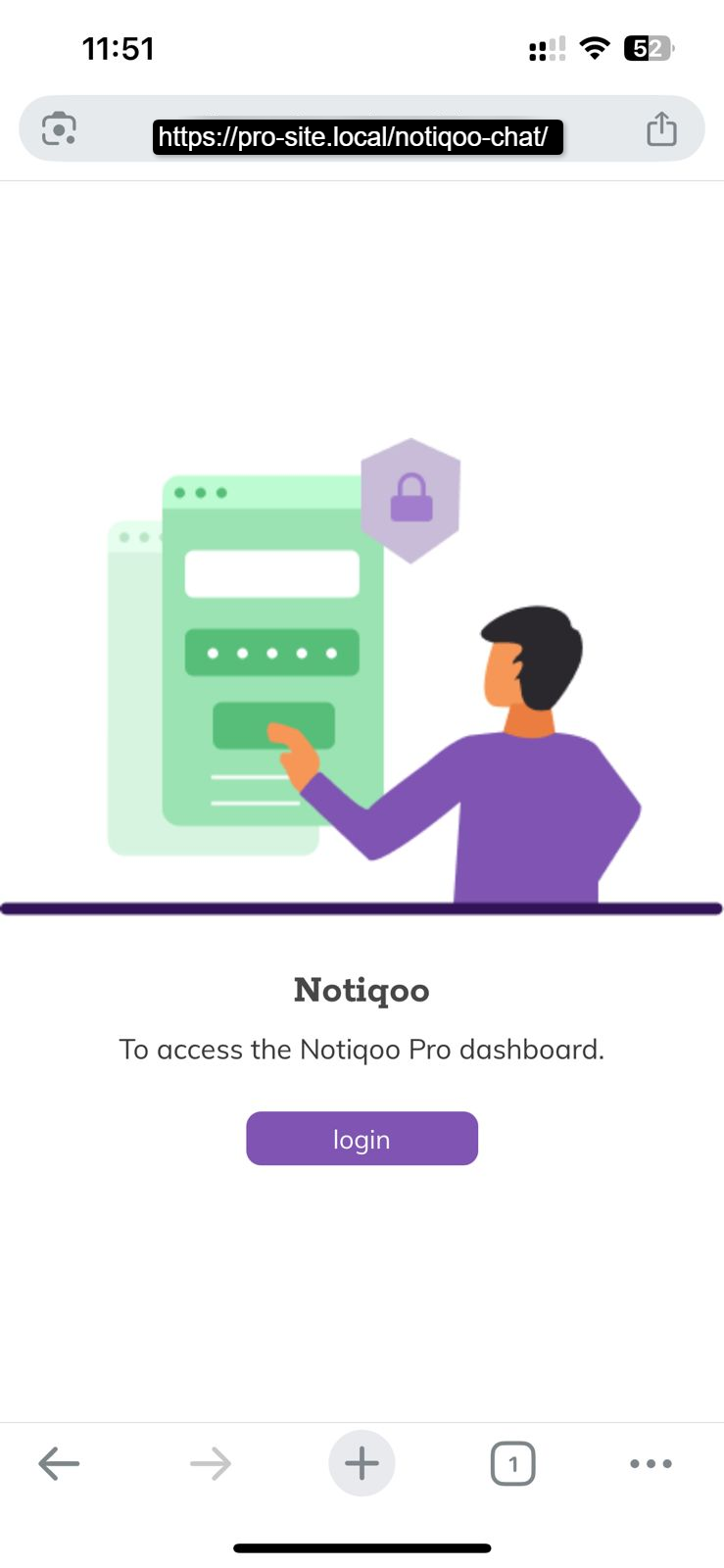
Turn your Notiqoo Chat page into an app-like experience on your iPhone. Once added to your Home Screen, you can open Notiqoo Chat directly like an app instead of opening your website and finding the Chat page each time.
Before you begin: Make sure you have already completed the Notiqoo Chat page setup and have the Chat page URL ready.
For example: https://your-site-name/notiqoo-dashboard/
Install Notiqoo Chat using Safari
Safari is the easiest way to add Notiqoo Chat to your iPhone Home Screen.
- Open your Notiqoo Chat page : Open Safari on your iPhone and visit your Notiqoo Chat page.
- Open the Share menu : Tap the Share button in Safari.
- Add Notiqoo Chat to your Home Screen.Scroll through the options and tap Add to Home Screen.
- If your iPhone shows the Open as Web App option, enable it. Then tap Add.
Open Notiqoo Chat: You will now find the Notiqoo Chat icon on your iPhone Home Screen. Tap the icon to open Notiqoo Chat. That’s it! Notiqoo Chat is now available directly from your iPhone Home Screen.
Using Chrome on iPhone
You can also add Notiqoo Chat to your Home Screen using Chrome.
- Open your Notiqoo Chat page : Open Chrome and visit your Notiqoo Chat page.
- Open the Share menu : Tap the Share option near the address bar.
- Add it to your Home Screen : Select Add to Home Screen, adjust the name if needed, and tap Add.
You’re ready! Notiqoo Chat is now available from your iPhone Home Screen. You can open it directly whenever you need to manage your team’s WhatsApp conversations.
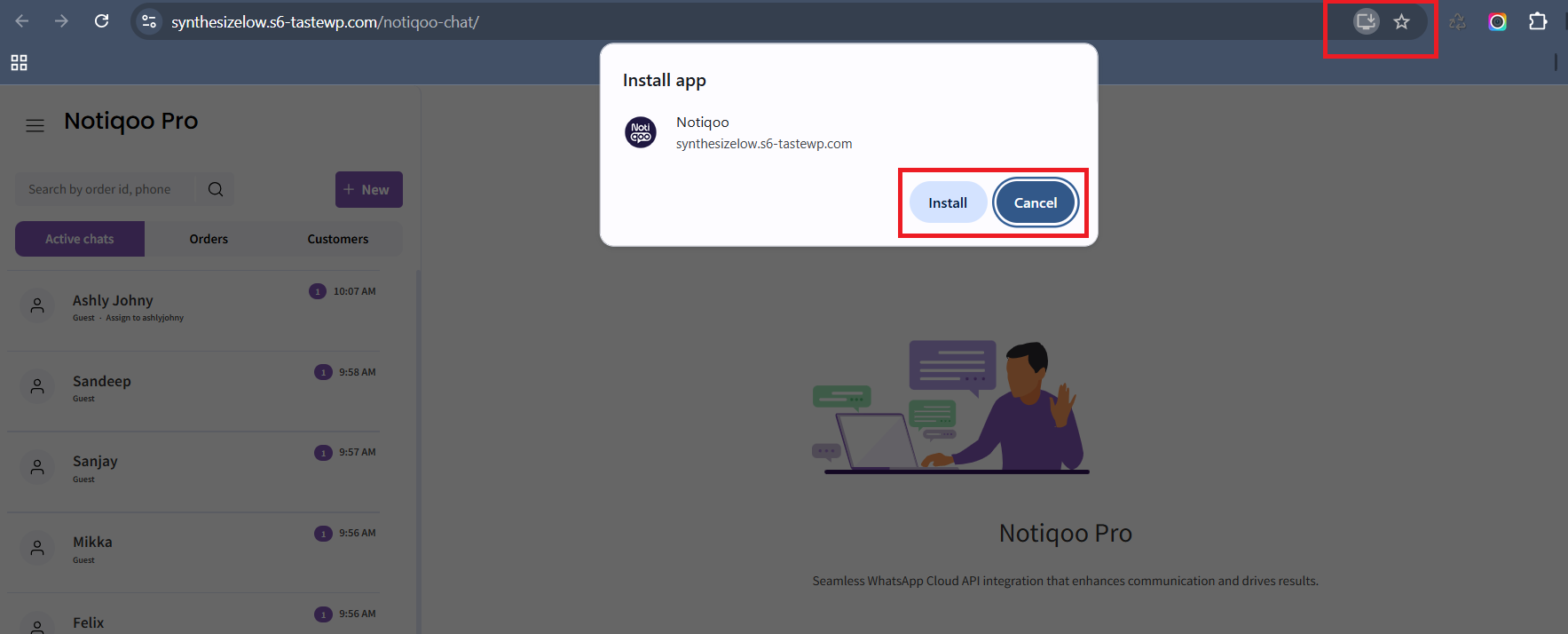
The app will be available directly on your iPhone. After that login with credentials.