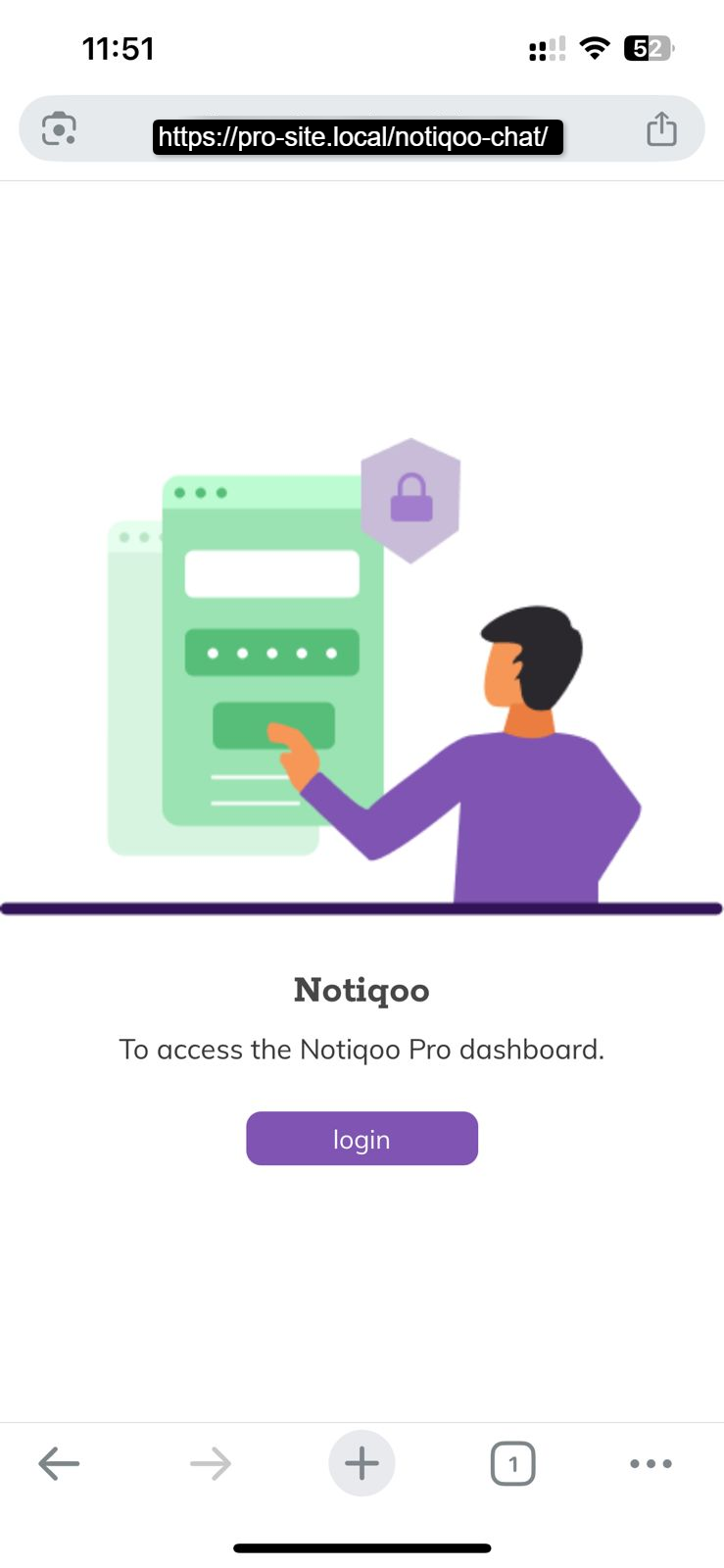
Use Notiqoo Chat directly from your Android phone by adding it to your Home Screen. Once installed, you can open Notiqoo Chat from your Home Screen without going back to your website each time.
Make sure you have already completed the Notiqoo Chat page setup and have your Chat page URL ready. For example: https://your-site-name/notiqoo-dashboard/
Install Notiqoo Chat Using Chrome
- Open Google Chrome on your Android phone and visit your Notiqoo Chat page. You should see your Notiqoo Chat interface.
- Open the Chrome Menu. Tap the three-dot menu (⋮) in the top-right corner of Chrome.
- Install Notiqoo Chat. Look for Install or Install app in the menu.
- Tap it and follow the on-screen instructions.
Note: Depending on your Android phone and Chrome version, the option may appear as Install, Install app, or Add to Home screen. The available option can vary by device and browser version.
Once the installation is complete, the Notiqoo Chat icon will be available on your Home Screen or in your apps. Tap the icon to open Notiqoo Chat.
That’s it! Notiqoo Chat is now ready to use on your Android phone. If You See “Add to Home Screen” On some Android devices, Chrome may show Add to Home screen instead of an install option. Tap Add to Home screen, then follow the prompts to create the Notiqoo Chat shortcut.
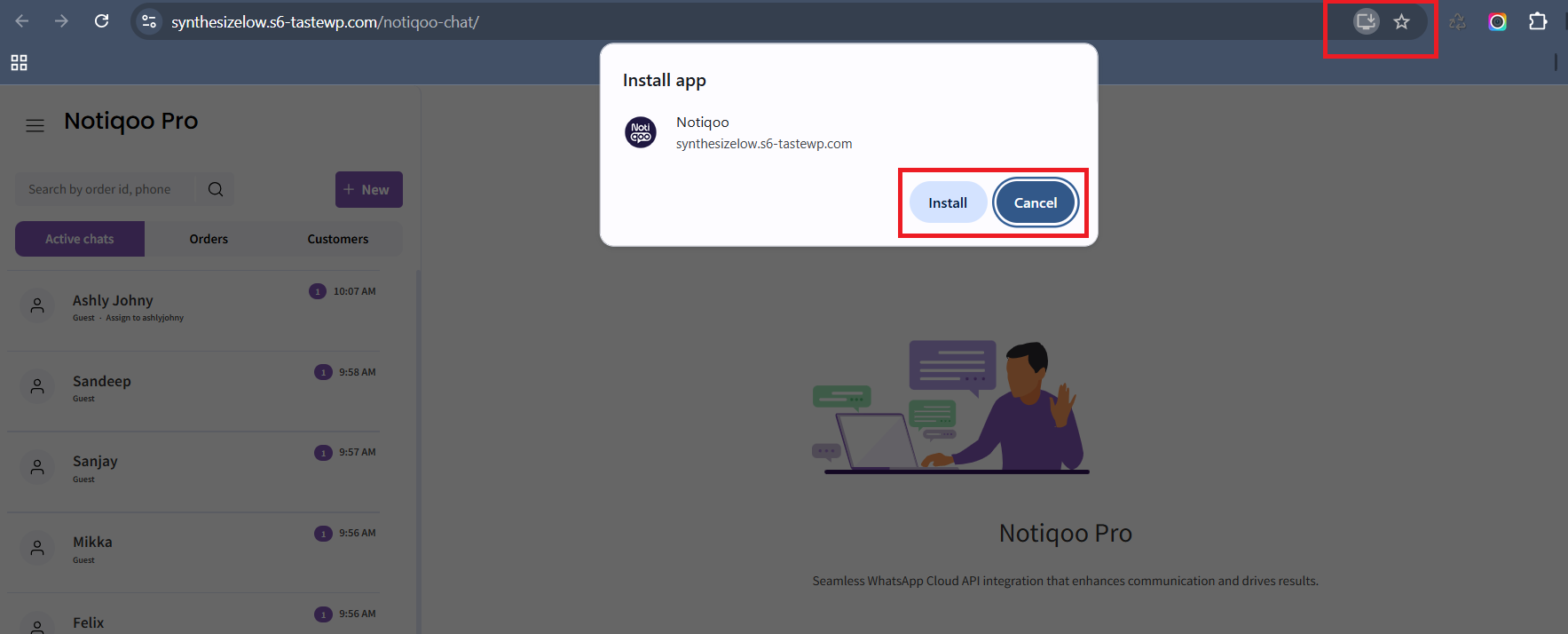
You can then open Notiqoo Chat directly from your Home Screen. You’re Ready! Notiqoo Chat is now available directly from your Android phone.You can open it with login credentials whenever you need to manage your team’s WhatsApp conversations..