You can use Notiqoo Chat as an app on your Windows or Mac computer without opening your WordPress dashboard every time. Before you begin, make sure you have already completed the Notiqoo Chat page setup and can open your Chat page in your browser.
Open Your Notiqoo Chat Page
Open the Notiqoo Chat page you created during the setup. For example: https://your-site-name/notiqoo-dashboard/. You should see the Notiqoo Chat interface.
Find the Install Option
Look for the Install option in your browser. Depending on the browser you are using, the install option may appear in the browser’s address bar or menu. Click Install to continue.
Don’t see an Install option?
Make sure you are opening the Notiqoo Chat page using a supported modern browser such as Google Chrome or Microsoft Edge.
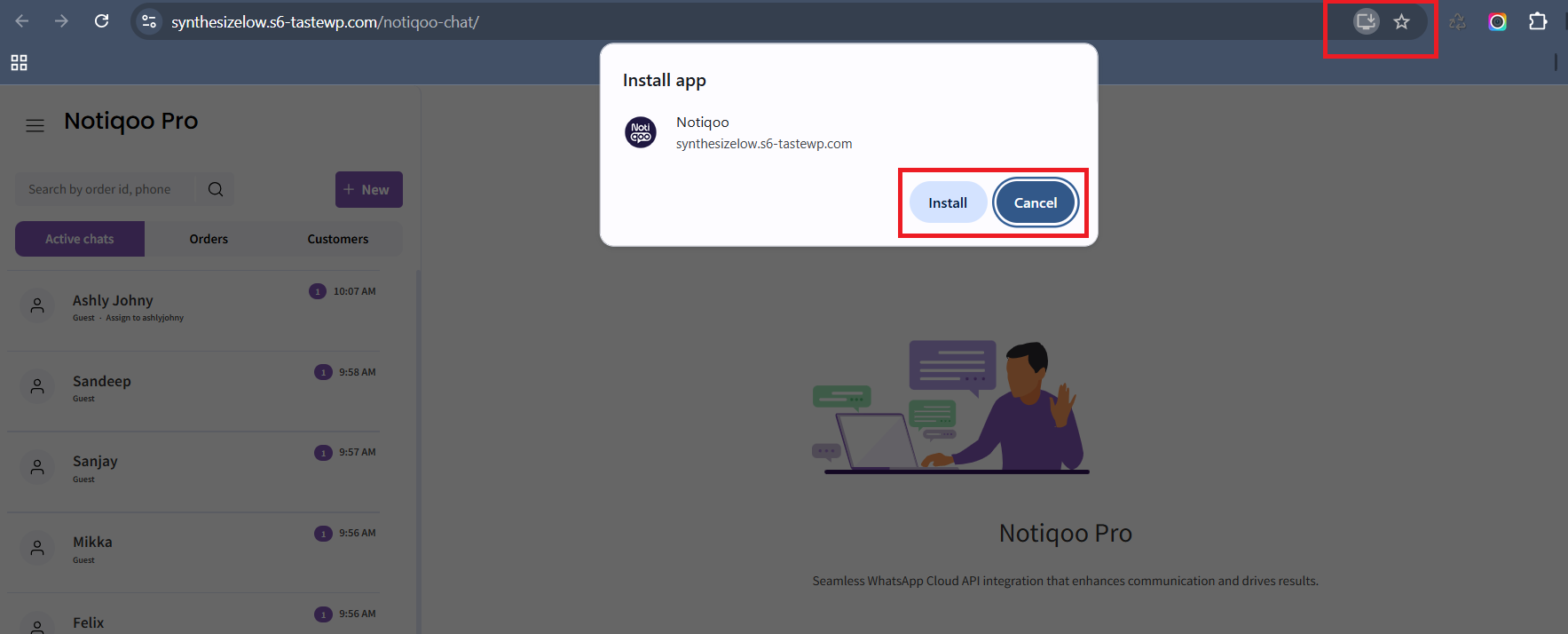
Install Notiqoo Chat
Follow the browser’s prompt to install the app. Once the installation is complete, Notiqoo Chat will be available as an app on your computer.
Open Notiqoo Chat
After installation, open Notiqoo Chat from your desktop, Start menu, or installed apps. You can now use Notiqoo Chat directly from your computer without opening your WordPress dashboard.
You’re all set! Notiqoo Chat is now installed on your desktop and ready for your team to use.