
 Posted by ashly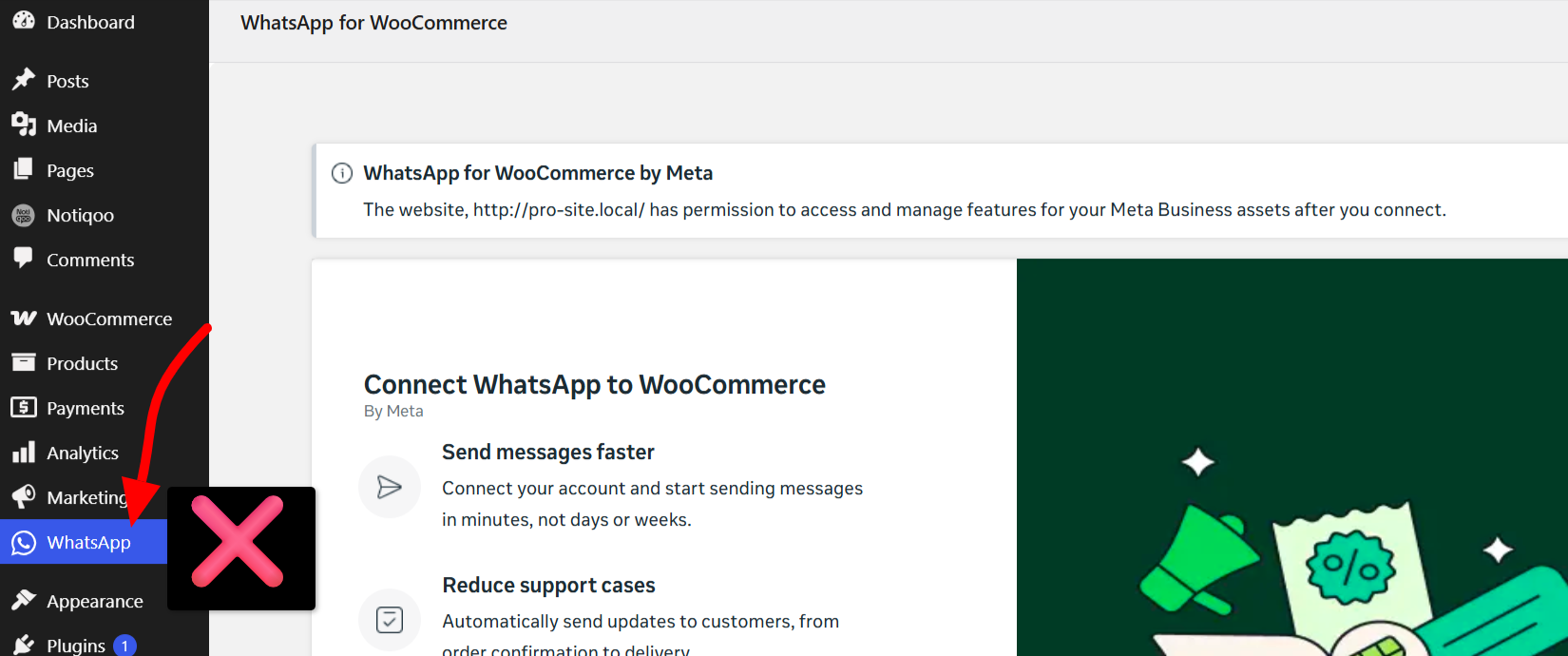
If you’re running WhatsApp for WooCommerce by Meta on your WordPress site, you may have noticed a WhatsApp menu item cluttering your admin dashboard sidebar. The good news: you can hide this menu completely without deactivating the plugin or disrupting your WhatsApp chat functionality on the front end.
In this guide, you’ll learn two simple ways to remove the WhatsApp menu from the WordPress dashboard — one using a lightweight code snippet, and one using a no-code plugin.
Note: This only hides the admin menu item. It does not deactivate the WhatsApp for WooCommerce plugin or disable its chat widget functionality for site visitors.
Method 1: Remove the WhatsApp Menu Using Code
The fastest way to hide the WhatsApp admin menu is by adding a small PHP snippet that unregisters it using WordPress’s built-in remove_menu_page() function.
add_action( 'admin_menu', 'remove_meta_whatsapp_menu', 999 );
function remove_meta_whatsapp_menu() {
    remove_menu_page( 'wc-whatsapp' );
}
Why priority 999? WordPress admin menus load in the order plugins register them. Setting the admin_menu hook priority to 999 ensures your code runs after the WhatsApp for WooCommerce plugin has already added its menu — so there’s something to remove when your function fires.
Where to Add This Code
To keep your changes safe from plugin/theme updates, add the snippet to one of the following instead of your main theme’s functions.php:
- Your child theme’s functions.php file
- A custom “site-specific” functionality plugin
- A code snippets plugin (e.g., WPCode or Code Snippets)
Best practice: Using a code snippets plugin or a small custom plugin is generally safer than editing theme files directly, since theme updates can overwrite your changes.
Method 2: Remove the WhatsApp Menu Without Code
Prefer a no-code solution? You can hide the WhatsApp menu using an admin menu management plugin like Admin Menu Editor.
Steps to Hide the WhatsApp Menu
- Install and activate the Admin Menu Editor plugin from the WordPress Plugin Directory.
- Go to Settings → Menu Editor in your WordPress dashboard.
- Locate the WhatsApp menu item in the admin menu list.
- Select it and choose Hide (or Disable).
- Save your changes.
Once saved, the WhatsApp menu will disappear from the dashboard sidebar — while WhatsApp for WooCommerce by Meta continues running normally in the background.
Which Method Should You Use?
- The code method is a good choice if you want a lightweight solution without installing another plugin.
- Use Admin Menu Editor if you prefer a no-code solution or want to manage multiple WordPress admin menus from one place.
Does This Disable WhatsApp for WooCommerce?
No. Both methods above only remove the menu item from the WordPress admin sidebar. The WhatsApp for WooCommerce by Meta plugin stays fully active, and the WhatsApp chat button/widget continues working on your site’s front end exactly as before.
If you ever want the menu back, simply:
- Remove the code snippet (Method 1), or
- Re-enable the menu in Admin Menu Editor (Method 2)
Conclusion
If you want to keep WhatsApp for WooCommerce by Meta active but tidy up your WordPress dashboard by hiding its menu item, the remove_menu_page() snippet is the simplest, most lightweight solution. If you’d rather avoid code entirely, Admin Menu Editor gets you there in a few clicks.
Important: Menu slugs can change between plugin versions. Always confirm that wc-whatsapp is still the correct menu slug for your installed version before using the code snippet — you can verify this by inspecting the admin menu URL or checking the plugin’s documentation.