
The WhatsApp Broadcast feature in Notiqoo lets you send a single message to many customers at once — perfect for promotions, reviews, updates, offers, and more.
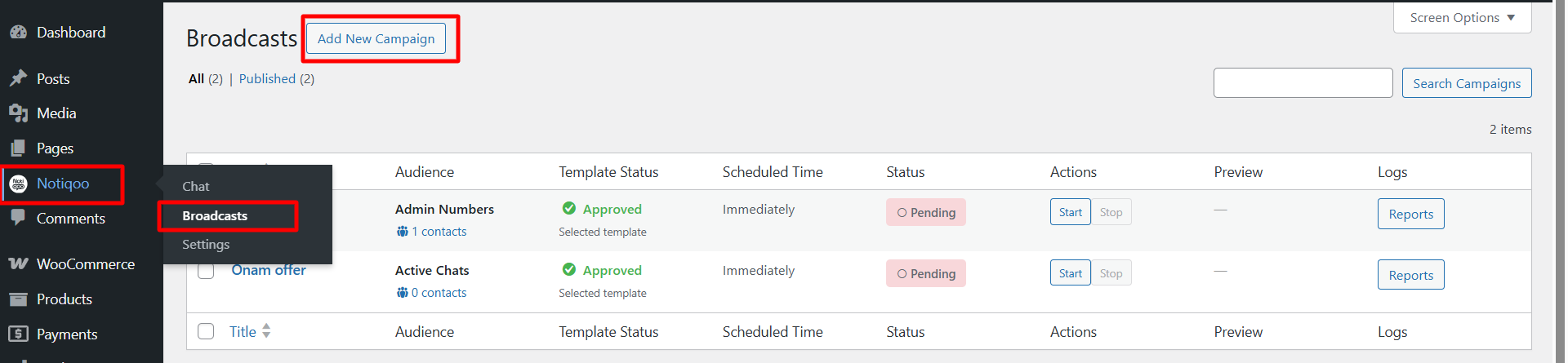
Step 1: Go to Broadcasts
From your WordPress dashboard:
Notiqoo → Broadcast
Here, you can see all your campaigns and create new ones.
Step 2: Add a New Campaign
Click Add New Campaign.You will see options like in the screenshot:

1. Target Audience
Choose who should receive your WhatsApp message:
- Active Chats
- Any other available audience list
2. Select Template/ Create template
Pick the WhatsApp message template you want to send.A preview of the message will be shown on the right so you can confirm the content.
Create & Use Template in Broadcast
When sending a broadcast, you can create a new WhatsApp message template directly from this page.
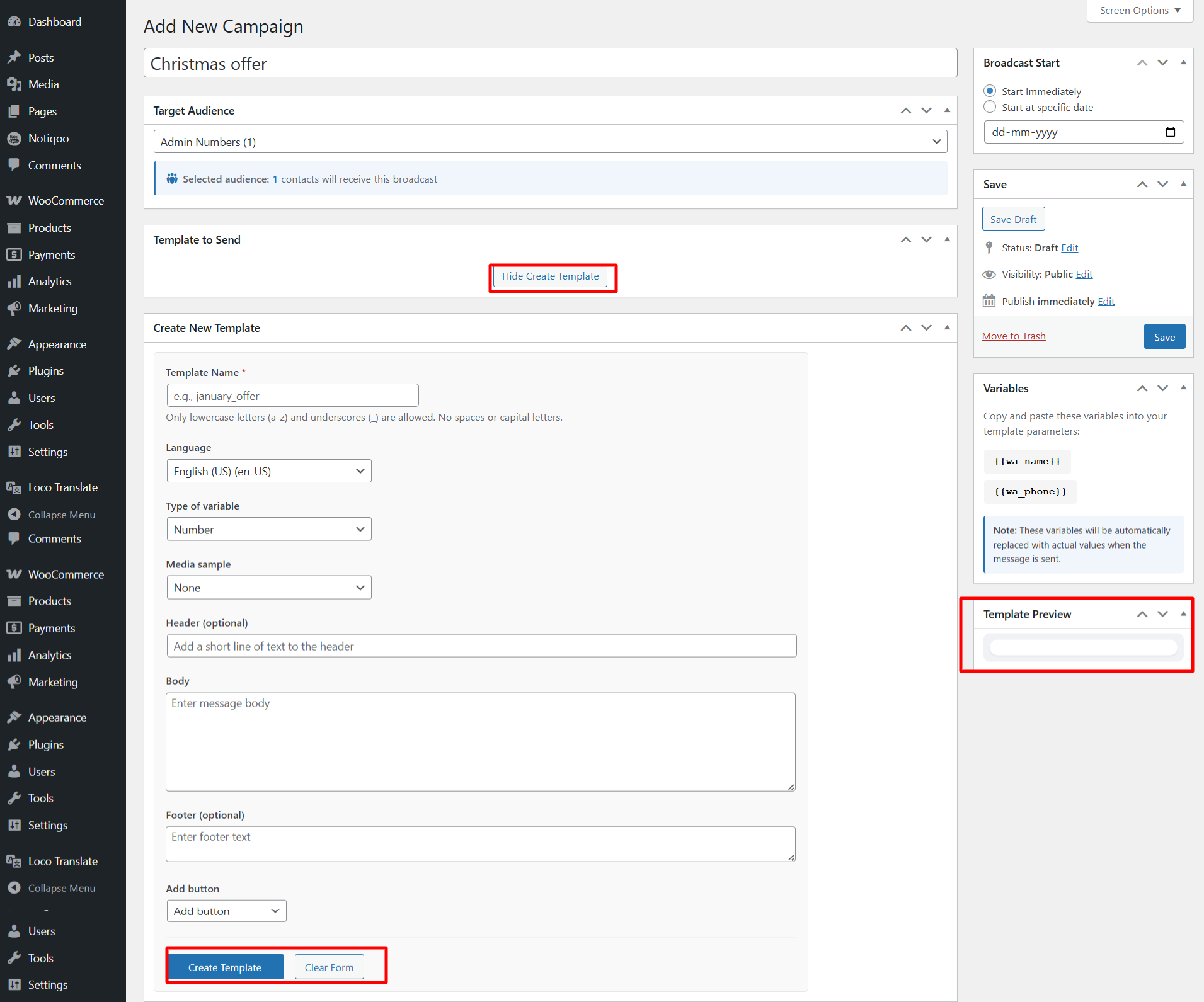
How it works:
Click “Create Template” and enter your message
Click Create Template to save it
The template will be sent to Meta for approval
Important:
👉 WhatsApp requires all broadcast templates to be approved by Meta
👉 Once approved, the template will be available in your broadcast page and also in your Meta template list
👉 You can reuse the same template anytime without creating it again
3. Broadcast Start
Choose when to send the message:
- Send Immediately, or
- Schedule for a specific date and time
4. Variables (optional if want in template messages where choosen)
Copy/paste variables like:
- {{wa_name}}
- {{wa_phone}}
These auto-fill customer details when sending the message.After setting everything, click Publish.Your campaign is now created.

Step 3: Start the Campaign
Go back to Notiqoo → Broadcast.
You will see your campaign listed with:
- Status: Pending
- A Start button
Click Start to begin sending the broadcast.You can also Stop it anytime if needed.
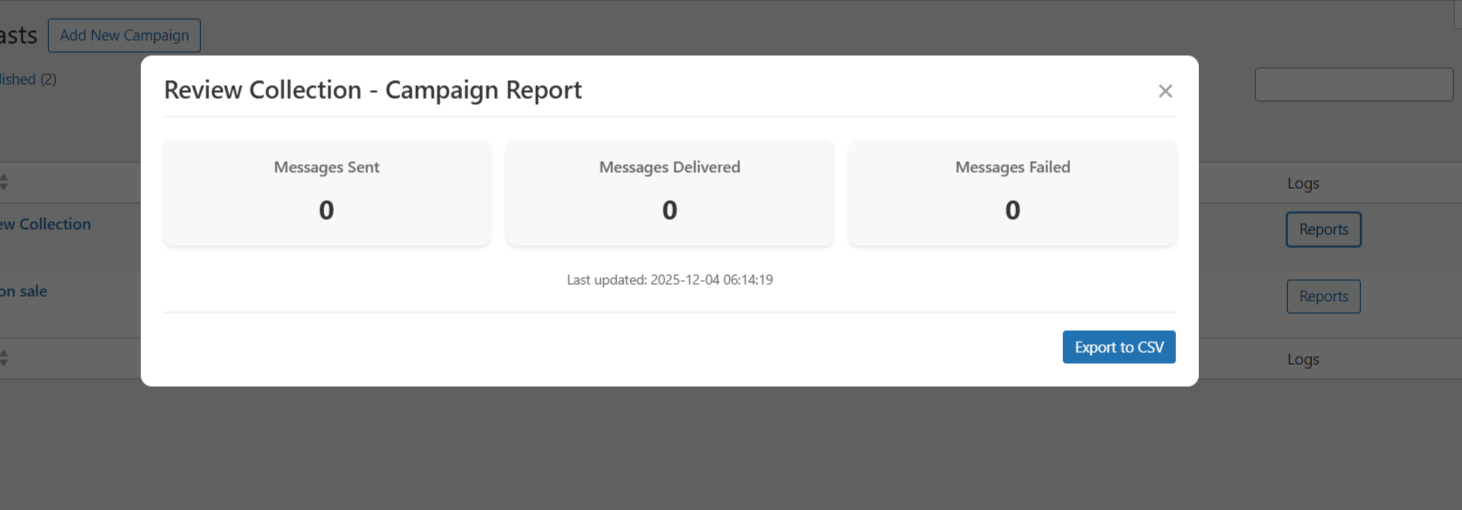
Step 4: Check Reports
Click Reports to view delivery performance:
- Sent
- Delivered
- Read
- Failed
You can also export reports to CSV for record-keeping or analysis.
Why This Feature is Useful
- Send WhatsApp marketing messages to many customers at once
- Boost product reviews, sales promotions, COD confirmations, and customer engagement
- Simple UI — no technical skills needed
- Real-time delivery reports
- Helps improve customer communication and retention